 Kammzeit
Reading the calendar
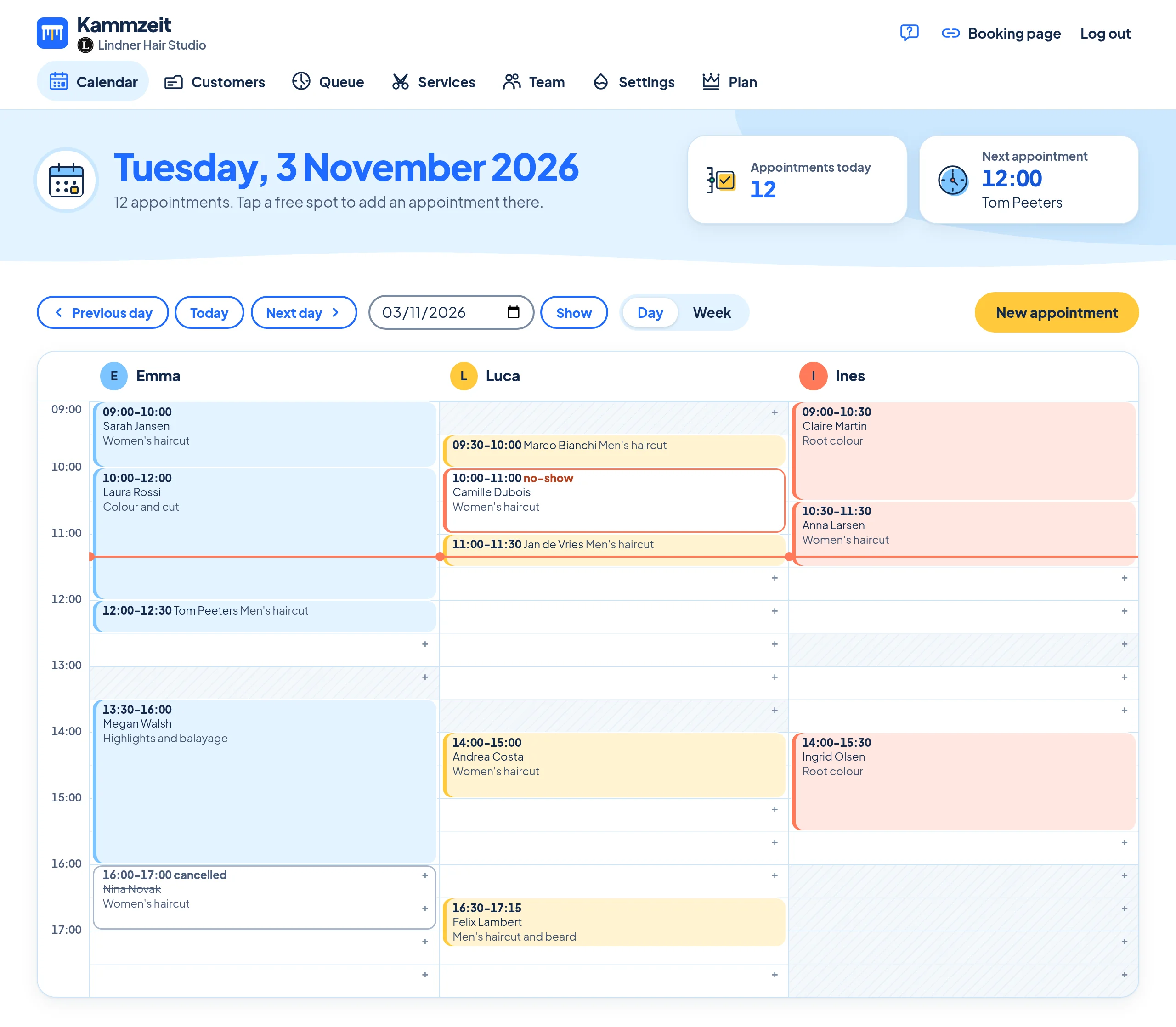
The Calendar is the start page of your dashboard. At the top you see the appointments today and the next appointment. Below that, switch between Day and Week, move with Previous day and Next day (in the week view: Previous week and Next week), go back with Today or pick a date and click Show.
In the day view, each staff member has a column in their own colour. White areas are working hours, hatched areas are time off or breaks, and a coral line marks the current time. Cancelled appointments have a grey outline and the name crossed out. No-shows have a coral outline.
Add an appointment
- In the day view, click a free spot in the staff member's column. Date, staff member and time are then already filled in. Or click New appointment at the top right.
- Choose the Service and the Staff member and check the Date.
- Pick a Time. Kammzeit suggests the free times of that staff member as buttons, but you can type any time in steps of 5 minutes, even outside working hours, for example before opening.
- Under Customer: type a name, email or phone number into Search existing customers and select the match. Or choose New customer and enter the name and, if you have them, phone number and email.
- If you like, add a Note on this appointment, such as “bringing a photo”. Only your salon can see it.
- If the customer has an email address, you can tick Send confirmation with cancellation link by email.
- Click Save.
If the email address or phone number is already in your customer records, Kammzeit adds the appointment to that customer instead of creating a second one.
No double bookings
If the staff member already has an appointment at the chosen time, Kammzeit does not save and tells you when they are busy, for example that Lisa already has an appointment from 10:00 to 10:30. The other way round, every appointment you add is immediately taken on your booking page too.
Reminders for appointments you add
If the customer has an email address, they get a reminder 24 hours before the appointment, even if you didn't send a confirmation. If you add an appointment that is less than 24 hours away, there is no reminder. Customers without an email address don't receive any emails. Kammzeit does not send text messages.
Tip: Ask for the email address on the phone. With a reminder and a cancellation link, customers forget their appointment less often, and anyone who can't make it cancels with one click.
Appointment details and notes
Clicking an appointment shows the time, service, price, staff member and customer with email and phone (on a mobile, tap the number to call). The source tells you whether the appointment was booked online or added in the dashboard.
Two kinds of notes appear there: the customer note from the customer card, which applies to every appointment of that person, and the note on this appointment, which you can change and keep with Save note.
Rescheduling
- Open the appointment and click Reschedule.
- Choose the new staff member, date and time. Again, Kammzeit suggests free times.
- If the customer has an email address, you can let them know about the new time by email. If you have already agreed on it, untick the box.
- Click Reschedule.
Customers cannot reschedule themselves. They cancel with the link in their email and book again. More in Cancellations and no-shows.