 Kammzeit
Turn it on
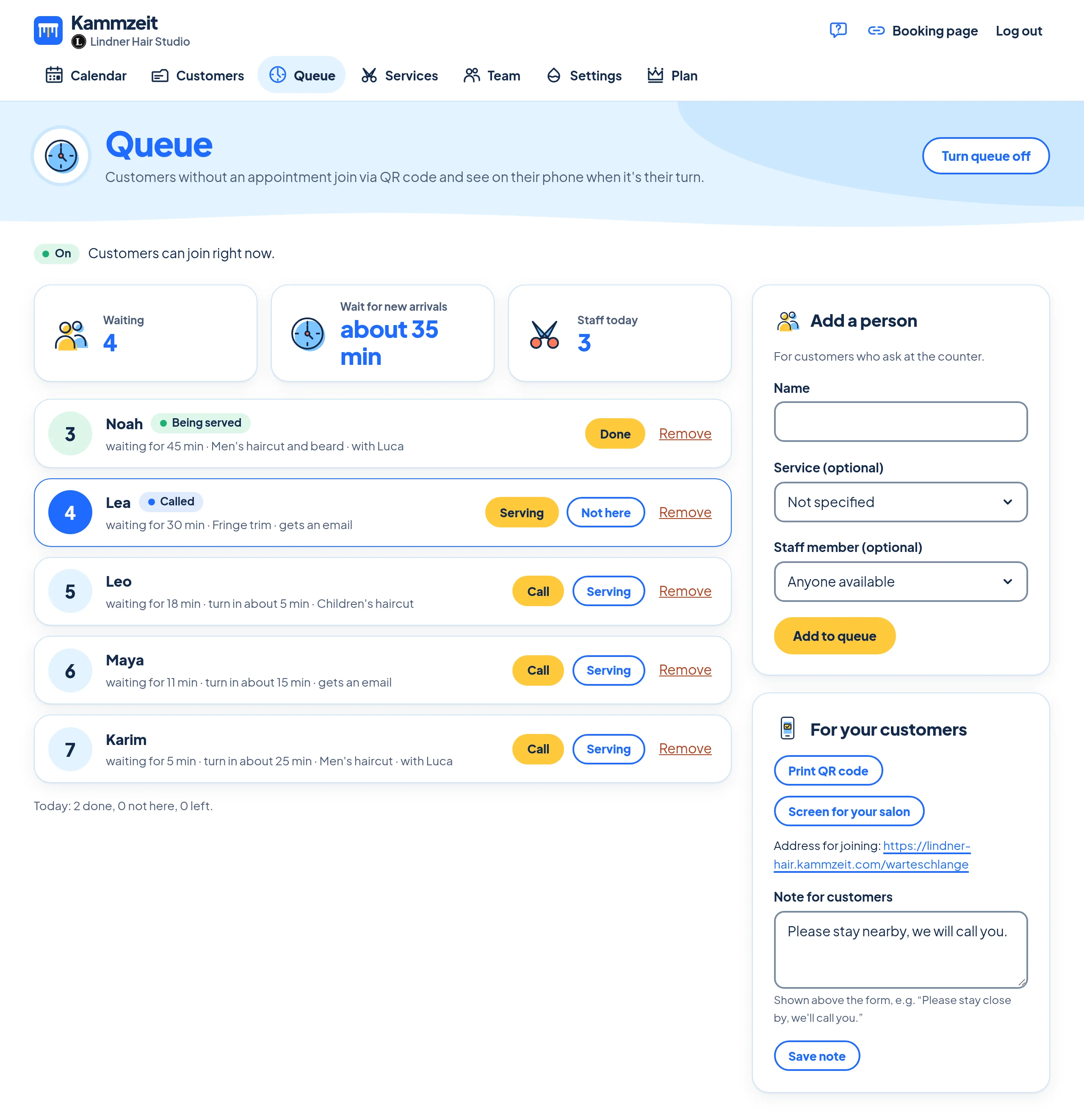
- Open Queue in the menu and click Turn queue on. The page now shows On.
- If you like, add a few words under Note for customers. They appear above the form, for example “Please stay close by, we'll call you.” Up to 300 characters, then click Save note.
Customers can only join while someone is working according to your working hours. Outside those hours they see a notice that you are closed. While the queue is on and you are open, your booking page also shows “Dropping in without an appointment? Join the queue”.
Only the salon owner can turn the queue on or off and change the note. Staff members with their own login work the list. On the Free plan, the menu item explains what the queue can do and offers Upgrade to Pro.
Print the QR code
- On the Queue page, in the box For your customers, click Print QR code.
- A sheet opens with your salon's name, “No appointment? Join the queue online.”, the QR code, three short steps and the address to type in. Click Print.
- Put the sheet on the door, in the window or at the front desk.
The address for joining is also shown on the Queue page, for example salon-example.kammzeit.com/warteschlange. You can share it just like your booking link.
Screen for your salon
Screen for your salon opens a page in a new tab for a TV or tablet in your salon: “Now serving” in large type with the numbers that have been called, the waiting numbers below and a QR code with “Join here”. Full screen hides everything else. The screen updates itself every few seconds and only shows numbers, never names.
What your customers see
- They scan the QR code, enter their First name, an email address and the service if they like, and tap Join the queue. They don't need an account.
- Their phone shows their number, how many people are ahead of them and the estimated wait. The page updates by itself.
- Anyone who decides not to wait taps I'm not coming after all.
Kammzeit estimates the wait from the duration of the chosen services (20 minutes per person if none is chosen), divided by the number of staff working today.
Call, Serving, Done, Not here
The Queue page lists everyone waiting today with their number, waiting time and chosen service. The list refreshes every ten seconds.
- Call: it's this person's turn. Their phone says it's their turn and asks them to come to the reception, and the screen in your salon shows their number.
- Serving: the person is in the chair. You can also use it straight away without calling first.
- Done: finished, the person leaves the list.
- Not here: called but didn't turn up. Their phone asks them to check in at the reception.
- Remove: takes someone off the list without further ado.
If someone asks at the counter, add them on the right under Add a person with their name and click Add to queue.
An email when it's their turn
If someone gave an email address when joining, they get an email “It's your turn” with their number as soon as you click Call. So they can pop out for a coffee in the meantime. In the list, these people are marked “gets an email”. The email is sent in the language of your booking page.
Data
We only need the first name and email address for today's queue. The next day, Kammzeit deletes the previous day's entries. So that customers find their place again after reloading, their phone remembers it in a cookie (kz_queue) for up to 12 hours. More under Data and security.