 Kammzeit
Add a new service
- Open Services in the menu, then click New service.
- Name: what your customers call it, for example “Women's cut, short hair”. Up to 80 characters.
- Description (optional, up to 300 characters): what is included, such as “including wash and blow-dry”. It appears on the booking page below the name.
- Duration in minutes: 5 to 480, in steps of 5.
- Price in euros: for example 25 or 25.50.
- Leave Active, bookable online ticked and click Save.
A new service is automatically assigned to all active staff. To change who offers which service, go to Team and open the staff member's Services section.
Choosing the right duration
The duration decides how long the staff member is busy. Your booking page only offers start times at which the whole service fits into the working hours without overlapping another appointment. Start times are offered every 15 minutes from the start of the working hours.
Include processing time and tidying up. If you need ten minutes after a colour to get the chair ready again, add them to the duration.
Order
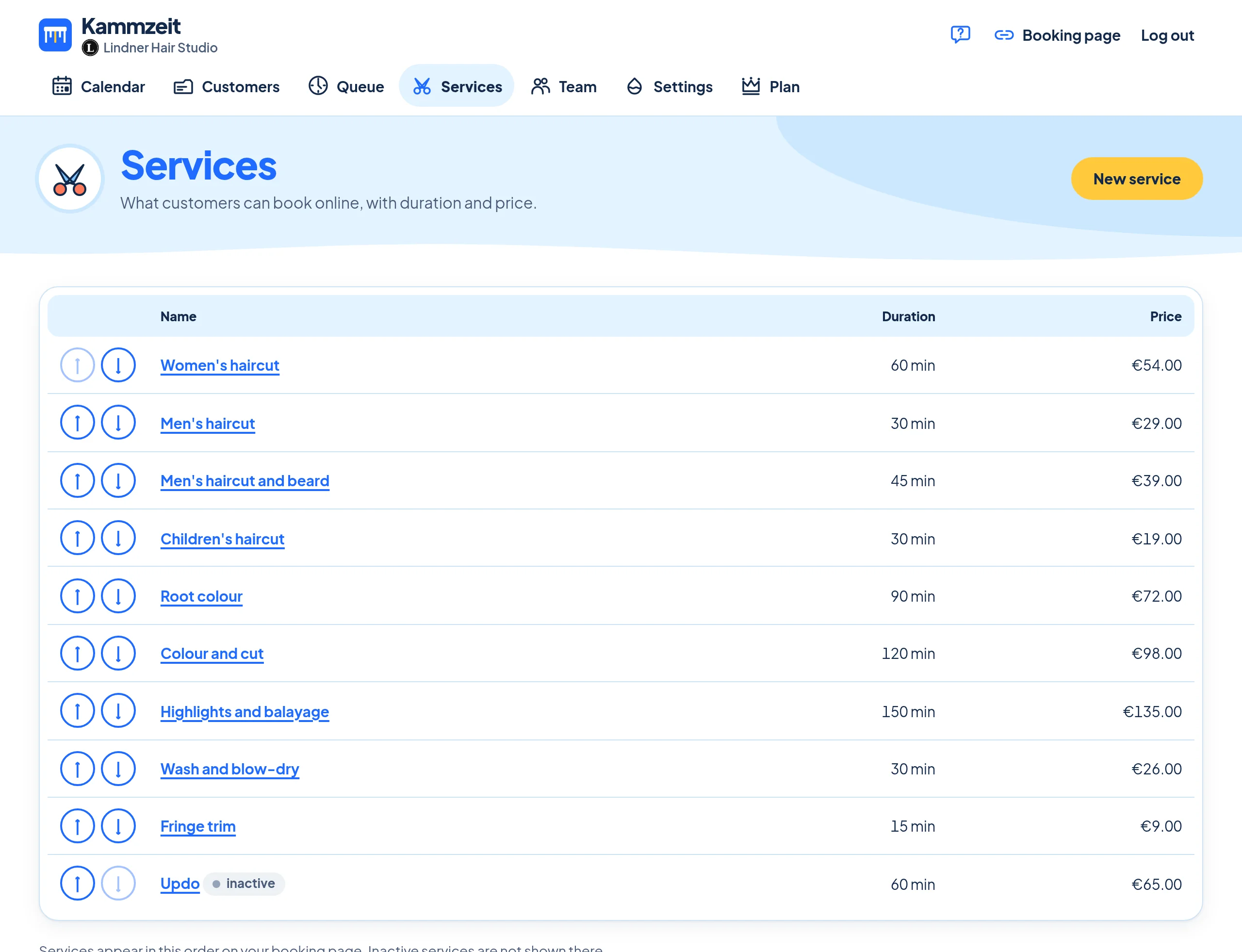
In the list under Services, each row starts with two arrows. ↑ moves a service up, ↓ moves it down. Your booking page shows the services in this order, so put the one booked most often at the top.
Changing a service
Click the service in the list, change the values and click Save.
- A new duration applies to new bookings. Appointments that are already booked keep their length.
- A new price applies everywhere straight away: appointments and customer records always show the current price of the service. Customers pay in the salon, Kammzeit does not charge them anything.
Taking a service offline for a while
Open the service, untick Active, bookable online and click Save. The list then marks it as inactive. It can no longer be booked online or chosen for new appointments in the calendar. Existing appointments stay as they are. To bring it back, tick the box again.
Deleting a service
Open the service and click Delete service at the bottom, then Yes, delete. If the service already has appointments, Kammzeit does not delete it but deactivates it instead (the button then reads Yes, deactivate). That way appointments and the history in your customer records stay complete.