 Kammzeit
How customers get into your records
Anyone who books online is added automatically. If the same email address books again, the appointment goes onto the same customer card. Regulars who don't book online you add yourself: under Customers in the menu with New customer, or directly while adding an appointment.
There is no import from other software yet, it is planned.
Searching
The search field under Customers finds people by name, email or phone number as you type. The list shows contact details, the number of visits, the last visit and the next appointment.
The customer card
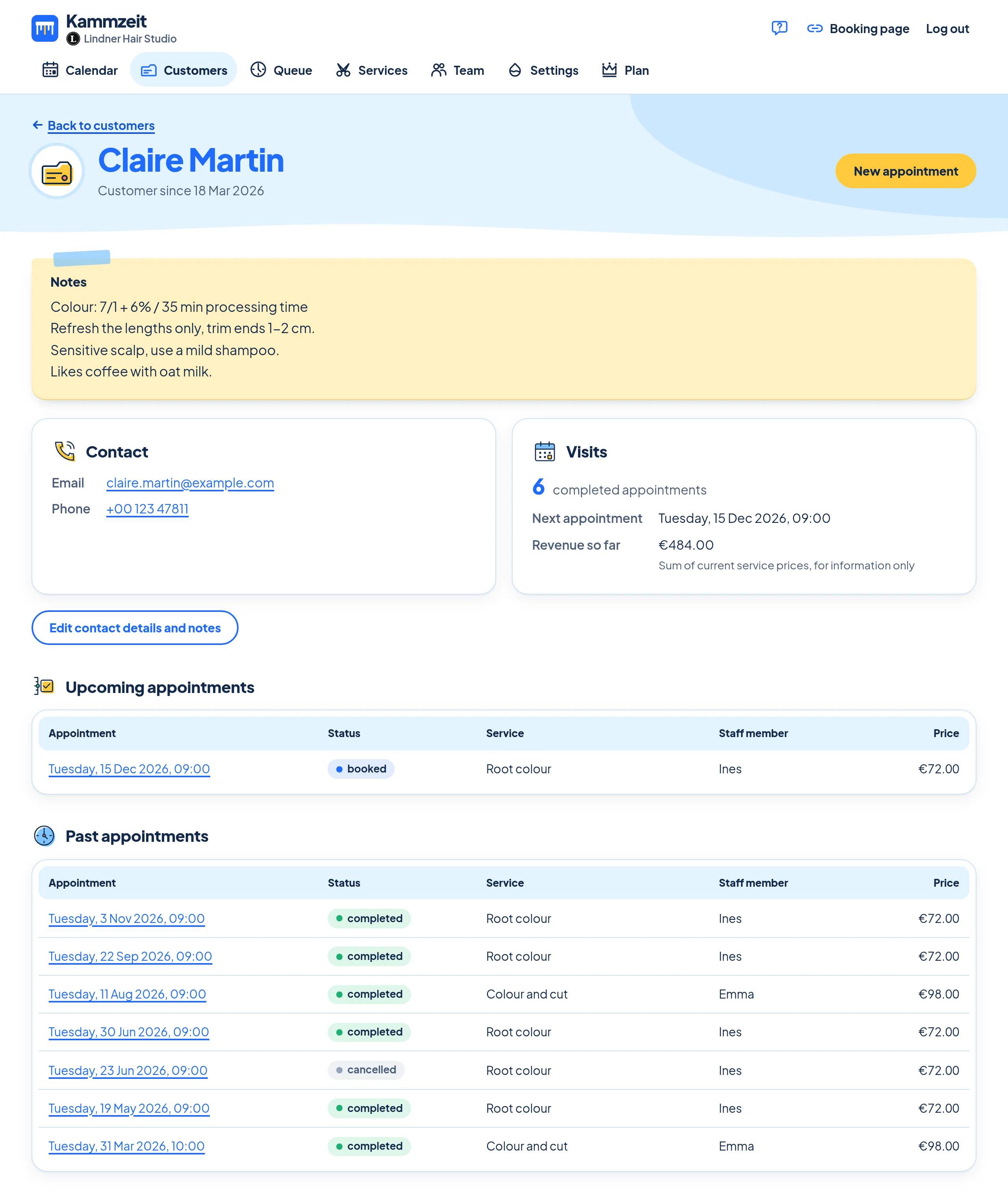
Click a name to open the customer card: contact details, customer since, visits, next appointment and revenue so far. Below that you find all upcoming and past appointments with service, staff member, price and status.
- Visits counts completed appointments. Cancelled appointments and no-shows don't count.
- Revenue so far is the sum of the current service prices, for orientation only. Kammzeit doesn't know what was actually paid.
- New appointment at the top opens the appointment form with this customer already selected.
Notes
Open Edit contact details and notes. The Notes field is for anything you want to know at the next visit: the colour formula (“7/1 + 20 vol.”), the favourite cut, special wishes. Up to 2000 characters, then click Save. Notes are only visible to your salon in the dashboard, never to the customer.
The note on the customer card applies to the person and appears with each of their appointments. The note on an appointment applies to that one appointment only.
Sensitive information: allergies, skin conditions and other health data are special categories of personal data under Art. 9 GDPR. Only record them with the person's explicit consent, and in a way that lets you prove that consent. Kammzeit protects these notes like all other data but does not encrypt them separately. More in the data processing agreement and under Data and security.
CSV export
Under Customers, below the list, click Download all customers as a CSV file. You get a file with name, email, phone, notes, the date the customer was added and the number of visits. It is saved in UTF-8 with semicolons between the columns, so accents and special characters come out right. If everything ends up in one column in Excel, import it via Data › From Text/CSV and choose the semicolon as the delimiter. LibreOffice and Numbers ask for the delimiter when opening.
The file contains your customers' personal data. Don't leave it on a computer that others use, and delete it when you no longer need it. Only the salon owner can export and delete customers, not a staff login.
Changing or deleting a customer
Change contact details with Edit contact details and notes. To delete a customer, click Delete customer at the bottom of the customer card, then Delete permanently. This removes the contact details, notes and all appointments of this customer, including upcoming ones. The customer is not notified. This is how you fulfil a customer's request to have their data erased, for example.