 Kammzeit
Add or edit a staff member
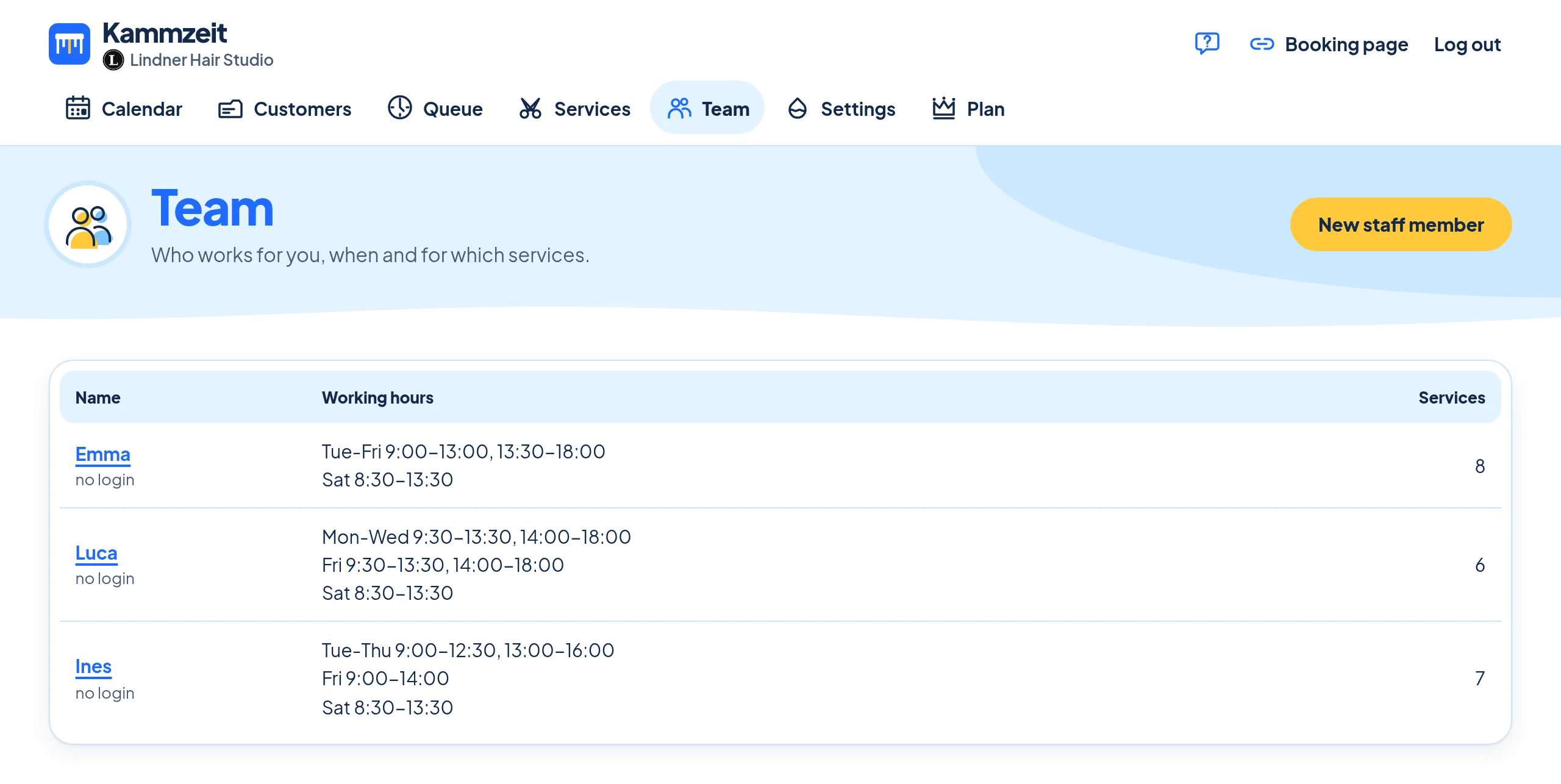
- Open Team in the menu. Click a staff member in the list or New staff member.
- Name: this is how they appear on the booking page when customers choose who to book with. A first name is enough, up to 60 characters.
- Leave Active, bookable online ticked.
- In the Services section, tick what this person does. They can only be booked online for the ticked services.
- In the Working hours section, enter the times for each weekday and click Save.
For a new staff member, services and working hours are already filled in. That is only a suggestion, so adjust it before saving. In the team list, staff members without any services are flagged, because nobody can book them online.
Working hours and breaks
Each weekday has two blocks with a start and an end time. An empty day means a day off. The gap between the two blocks is a break that nobody can book into.
| Day | Block 1 | Block 2 |
|---|---|---|
| Monday | empty | empty |
| Tuesday | 09:00 - 12:30 | 13:30 - 18:00 |
| Saturday | 09:00 - 14:00 | empty |
Times go in steps of 5 minutes. Customers only see start times at which the chosen service fits completely into one block. In the example, a 60-minute service on Tuesday can start between 09:00 and 11:30 and between 13:30 and 17:00.
Who does which service
On the booking page, customers first choose the service, then who they want to book with: a particular staff member or Anyone available. Only staff members who have that service ticked are offered. With Anyone available, the customer sees the free times of all matching staff together.
More than one staff member
On the Free plan, one staff member can be active. If you add or activate a second one, the dashboard tells you that the Free plan allows only one active staff member and offers Upgrade to Pro. Inactive staff members don't count. With Pro you can have as many as you like.
With Pro, each staff member can also get their own dashboard login and then keep their working hours up to date under My hours. See Invite your staff.
Holidays and days off
Kammzeit does not yet have a feature for absences such as holidays or sick leave, it is planned. Here is how to manage in the meantime:
- Longer absence: untick Active, bookable online for the staff member and save. Nothing can then be booked with them online. Appointments already in the calendar stay there: reschedule them to a colleague or cancel them one by one, see Reschedule and Cancellations. Tick the box again when they are back.
- One weekday off for a while: clear the times for that day. This applies to every week until you enter the times again, so make a note of the old times first.
- A single day or a few hours: add an appointment in the calendar for that time, for example with the customer name “Blocked”. Time that is taken cannot be booked online. Next time, find “Blocked” with the customer search instead of creating it again.
The earlier you adjust the times, the fewer appointments you have to move. How far ahead customers can book is set in the booking rules.